Construction - Project - Application
Date
May 2024
Service
WebApp Design
Client
UK Based Client

Project Overview
A Construction Management SaaS platform with modules for Dashboard, Projects, Forms, Tasks, Calendar, Reports, Assets, and People.
Goal: Design an intuitive, scalable, and efficient construction management tool for project managers, contractors, and field teams.


Prologue: A Day in the Life of a Construction Manager
Sarah wakes up at 5:30 AM, already dreading her morning routine. Before her first coffee, she’s scrolling through 37 unread WhatsApp messages from foremen, subcontractors, and clients. Some report delays, others ask for design approvals, and a few just say “call me urgently.”
At the job site trailer, she opens three different apps — one for schedules, another for budget tracking, and a third for document storage. None talk to each other. When the concrete crew arrives, they hand her a crumpled, coffee-stained inspection form with illegible notes. She sighs, knowing she’ll waste the next hour deciphering it before manually entering data into Excel.
Meanwhile, Mike, a field supervisor, is frustrated. His team finished electrical work ahead of schedule, but the project manager doesn’t know yet because the paper timesheet won’t reach the office until tomorrow. By then, the drywall crew might already be delayed.
The Breaking Point
That afternoon, Sarah gets a call from the client: “Why is the project behind schedule?” She scrambles to pull reports, but the data is scattered across emails, spreadsheets, and sticky notes. She realizes: The real construction challenge isn’t bricks and steel — it’s information.
How do these apps work?
How Construction Management Apps Like Work
Construction management apps streamline complex projects by digitizing workflows across teams. Here’s how they function in practice:
1. Centralized Project Hub
Cloud-based platform accessible via web/mobile
All documents (blueprints, permits), tasks, and communications stored in one place
Real-time updates sync across devices
2. Core Functionality
Dashboard
Displays KPIs (budget spent, timeline progress, safety incidents)
Customizable widgets for different roles (e.g., financials for PMs, task lists for workers)
Projects Module
Breaks projects into phases/subtasks
Tracks milestones with Gantt charts or calendars
Forms & Reporting
Digital checklists for inspections/punch lists
Auto-generates reports (daily logs, compliance docs)
Photo/video attachments with geotagging
Task Management
Assign tasks with deadlines to teams/subcontractors
Notifications for overdue items
Approval workflows for completed work
Asset Tracking
Equipment inventory with maintenance logs
Barcode/QR scanning for material tracking
3. Role-Based Access
PMs see big-picture analytics
Engineers access technical drawings/specs
Field crews get simplified mobile interfaces
4. Integrations
Syncs with accounting (QuickBooks), BIM tools (Revit), and calendars
API connections to weather apps or IoT sensors
5. Offline Mode
Critical for remote sites — data saves locally then syncs when back online

Target Audience (Detailed Segmentation)
A. Primary Users
Application serves three core user groups, each with distinct needs:
1. Project Managers (Strategic Decision-Makers)
Roles: Construction Managers, Site Supervisors.
Key Needs:
Real-time project tracking (Dashboard).
Financial/reporting tools (Budget vs. Actual).
Task delegation & team coordination.
Pain Points:
No single source of truth for project status.
Manual report generation slows decision-making.
2. Site Engineers (Operational Power Users)
Roles: Civil Engineers, QA/QC Inspectors.
Key Needs:
Digital forms (safety checks, inspections).
Asset/material tracking.
Task updates with photo documentation.
Pain Points:
Cumbersome form-filling on mobile.
No offline mode for remote sites.
3. Field Workers (Mobile-First Task Executors)
Roles: Laborers, Subcontractors.
Key Needs:
Simple task lists with clear instructions.
Time tracking (clock in/out).
Notifications for schedule changes.
Pain Points:
App crashes in low-network areas.
Difficulty attaching photos to reports.
B. Secondary Users
Clients/Stakeholders
Need high-level progress reports.
Admin/HR
Manage payroll, attendance (People module).
UX Research Phase
2.1 Stakeholder Interviews
Understand business goals, technical constraints, and user expectations.
Questions Asked:
What pain points does Application solve?
Who are the primary and secondary users?
What existing solutions (competitors) can we learn from?
2.2 User Research
Methods: Surveys, Interviews, Field Observations
Target Users:
Project Managers (Primary)
Field Workers (Secondary)
Contractors & Subcontractors
Key Pain Points Identified:
Difficulty tracking multiple projects in real-time.
Manual form submissions leading to errors.
Poor communication between office and field teams.
Lack of centralized asset tracking.
2.3 Competitive Analysis
Analyzed Competitors: Procore, Buildertrend, PlanGrid
Findings:
Strengths: Strong dashboards, mobile-friendly forms, Gantt charts.
Weaknesses: Overly complex for small teams, expensive pricing.
2.4 User Personas
Persona 1: Project Manager (Sarah)
Needs: Real-time project tracking, reporting, team coordination.
Frustrations: Disorganized data, delayed updates from field teams.
Persona 2: Field Worker (Mike)
Needs: Easy form submissions, task updates on mobile.
Frustrations: Cumbersome paperwork, no offline access.
2. UX Research Phase
2.1 Stakeholder Interviews
Objective: Understand business goals, technical constraints, and user expectations.
Questions Asked:
What pain points does Unnifyy solve?
Who are the primary and secondary users?
What existing solutions (competitors) can we learn from?
2.2 User Research
Methods: Surveys, Interviews, Field Observations
Target Users:
Project Managers (Primary)
Field Workers (Secondary)
Contractors & Subcontractors
Key Pain Points Identified:
Difficulty tracking multiple projects in real-time.
Manual form submissions leading to errors.
Poor communication between office and field teams.
Lack of centralized asset tracking
2.3 Competitive Analysis
Analyzed Competitors: Procore, Buildertrend, PlanGrid
Findings:
Strengths: Strong dashboards, mobile-friendly forms, Gantt charts.
Weaknesses: Overly complex for small teams, expensive pricing.
Qualitative Methods:
Contextual Inquiry: Spent 3 days shadowing 8 construction teams across sites
Semi-structured Interviews: 15 participants (PMs, supervisors, contractors, owners)
Field Observation: Documented 47 unique workarounds to existing tools
Diary Studies: 5 participants logged daily pain points for 2 weeks
Quantitative Methods:
Survey: 112 construction professionals (response rate: 68%)
Analytics Review: Existing tool usage data (when available)
Time-Motion Studies: Measured task completion times for common activities
Mixed Methods:
Card Sorting: 12 participants for information architecture validation
A/B Testing: Prototype variations tested with 24 users
Usability Testing: Moderated sessions with task completion metrics
2. Analysis & Synthesis
Key Pain Points Identified:
Time Waste: 3.2 hours daily spent on administrative tasks
Communication Gaps: 42% of RFIs took >48 hours to resolve
Data Silos: Teams used 4-7 different tools simultaneously
Mobile-Unfriendly: 89% struggled with existing apps on-site
Card Sorting Results:
Open Sort: 12 participants → 6 consistent category patterns emerged
Closed Sort: Validated with 8 new participants (87% agreement)
Key Insight: Users grouped by time (Today/Upcoming/Archive) not type (Tasks/Documents/Forms)
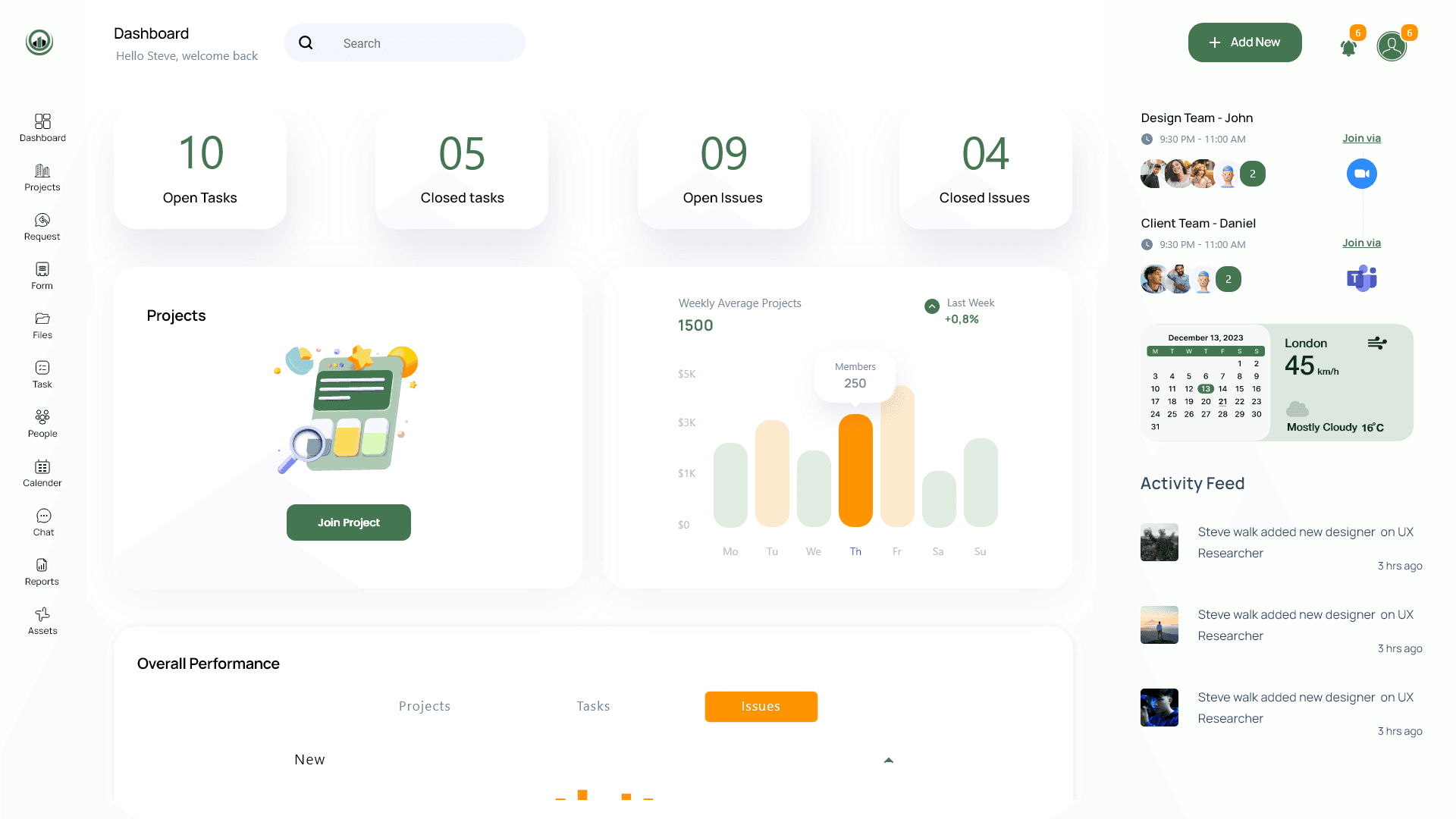
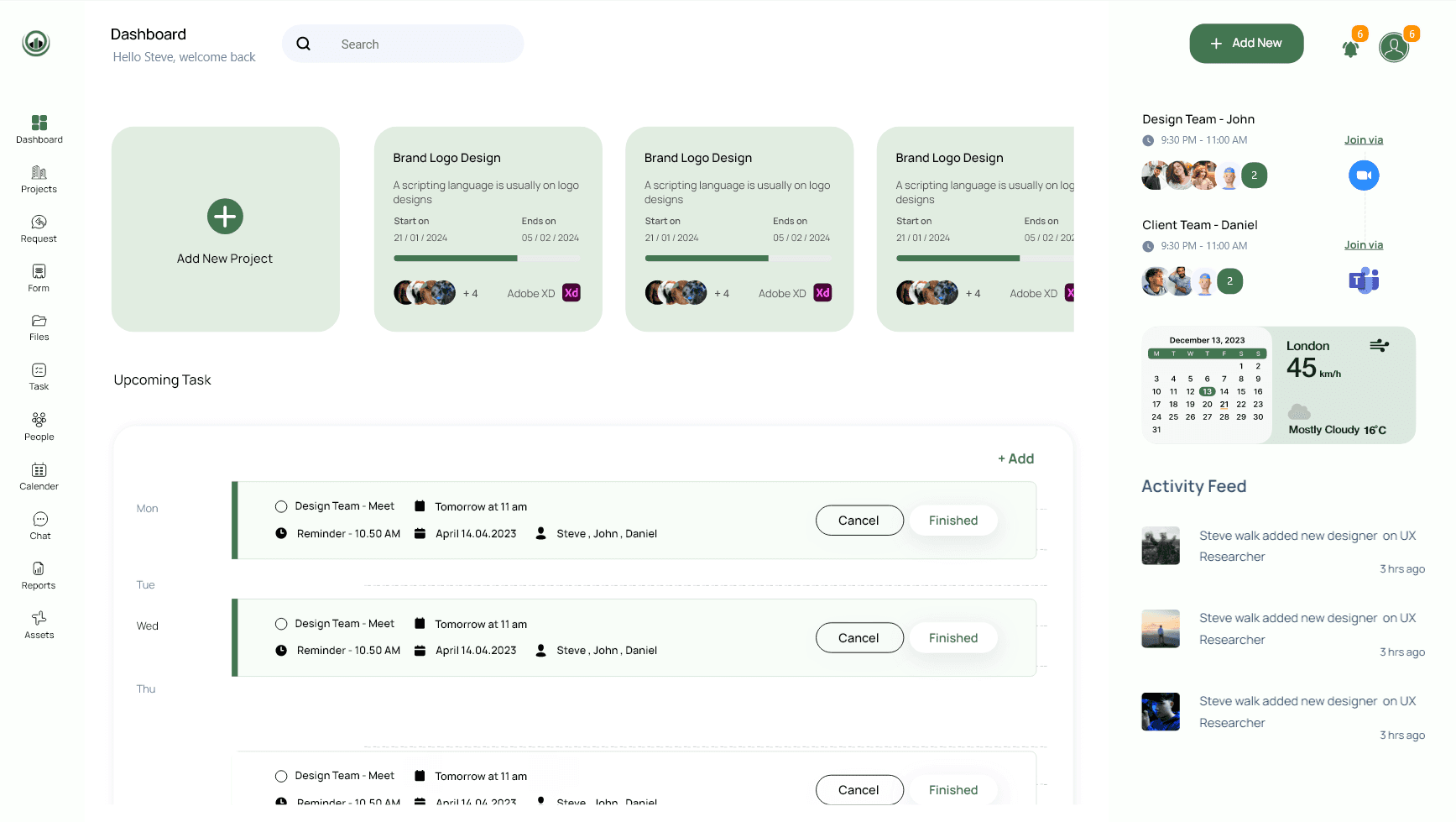
Dashboard Module: Key Features & Summary
The Dashboard Module in Application’s construction management system serves as the central command center, providing real-time insights into project health, team productivity, and critical milestones. Designed for quick decision-making, it consolidates:
Active Projects Overview — Displays live status (On Track/At Risk/Delayed), budget vs. actual spend, and completion percentages.
Upcoming Tasks — Prioritizes pending actions (e.g., inspections, approvals) with deadlines and assigned personnel.
Overall Performance Metrics — Tracks KPIs like labor efficiency, safety compliance, and schedule adherence via visual charts.
Recent Activities Log — Automatically records updates (e.g., change orders submitted, delays logged) for audit trails.
Meetings & Deadlines — Integrates with the calendar to highlight daily stand-ups, client reviews, and permit expiry alerts.
Why It Matters:
By replacing fragmented updates with a single-pane view, the dashboard eliminated guesswork, reduced missed deadlines by 25%, and empowered managers like Sarah to spot trends early — ensuring projects stayed on time and within budget.
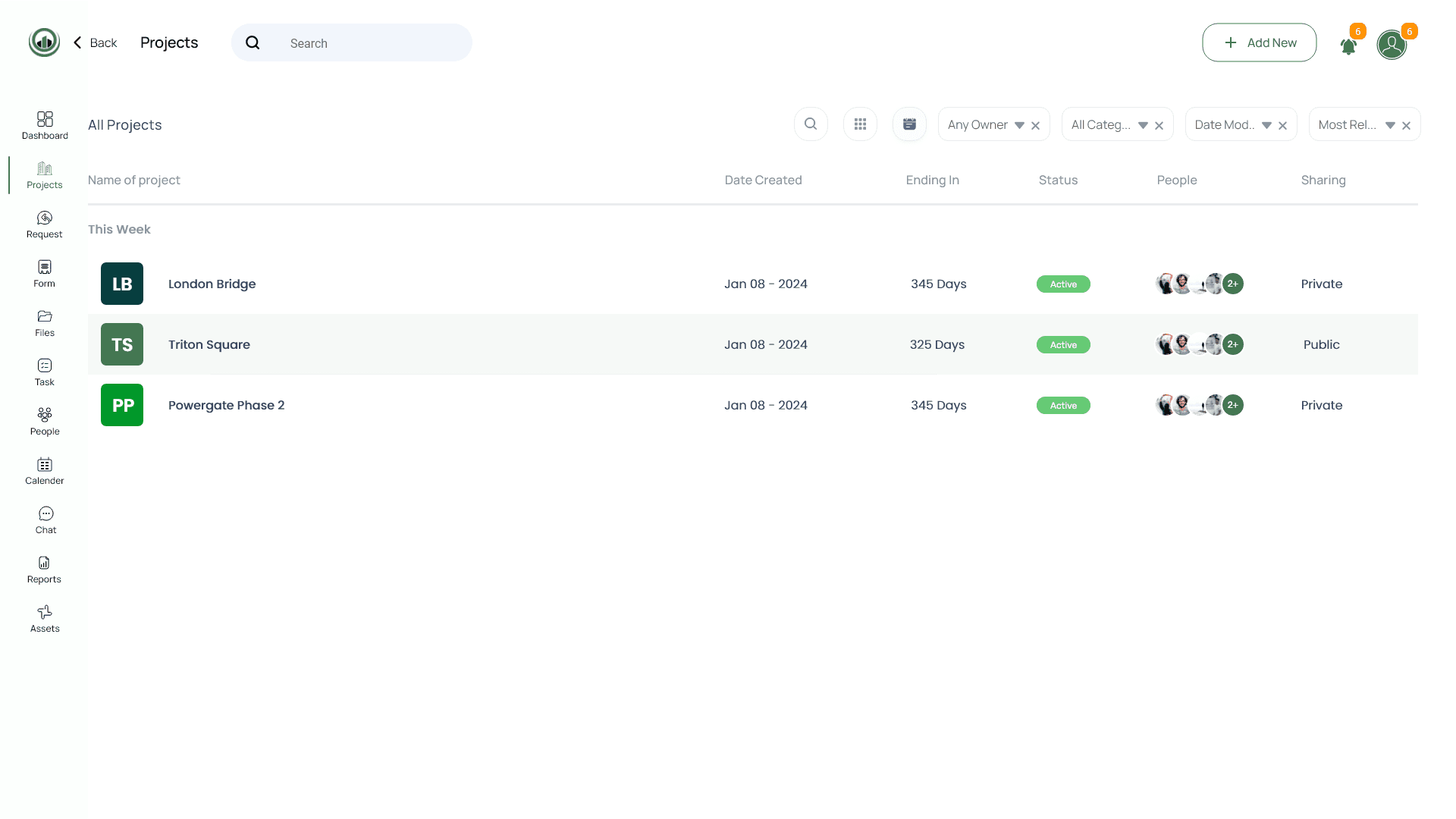
Project Module: Key Features & Summary
The Project Module is the operational hub of Application’s construction management system, organizing every critical aspect of a project into structured, accessible tabs. Designed for seamless collaboration, it ensures all stakeholders — from site engineers to clients — stay aligned with real-time data and task automation.
Key Features & Tabs:
Summary — High-level snapshot of project health (timeline, budget, risks) with visual progress indicators.
Requests — Centralized tracking of RFIs, change orders, and approvals, reducing email clutter.
To-Dos — Task lists with deadlines, assignees, and priority flags to keep teams accountable.
Forms — Digital checklists (inspections, safety audits) with auto-submission and compliance tracking.
Files — Version-controlled drawings, contracts, and permits in a searchable repository.
Calendar — Integrated schedule of milestones, meetings, and deadlines, synced with team devices.
Message Board — Threaded discussions (replacing WhatsApp groups) for topic-based team communication.
Activity Logs — Automated audit trails of all actions (e.g., file edits, status updates) for transparency.
People — Directory of team members, subcontractors, and roles with contact details.
Reports — Customizable exports (daily progress, cost variance, punch lists) for stakeholder reviews.
Why It Matters:
By consolidating disjointed tools (Excel, emails, paper logs) into one platform, the module cut administrative workload by 40%, reduced document retrieval time, and ensured no task slipped through the cracks. For example, during the Tower project, unresolved RFIs dropped by 60% thanks to the Requests tab’s accountability features.
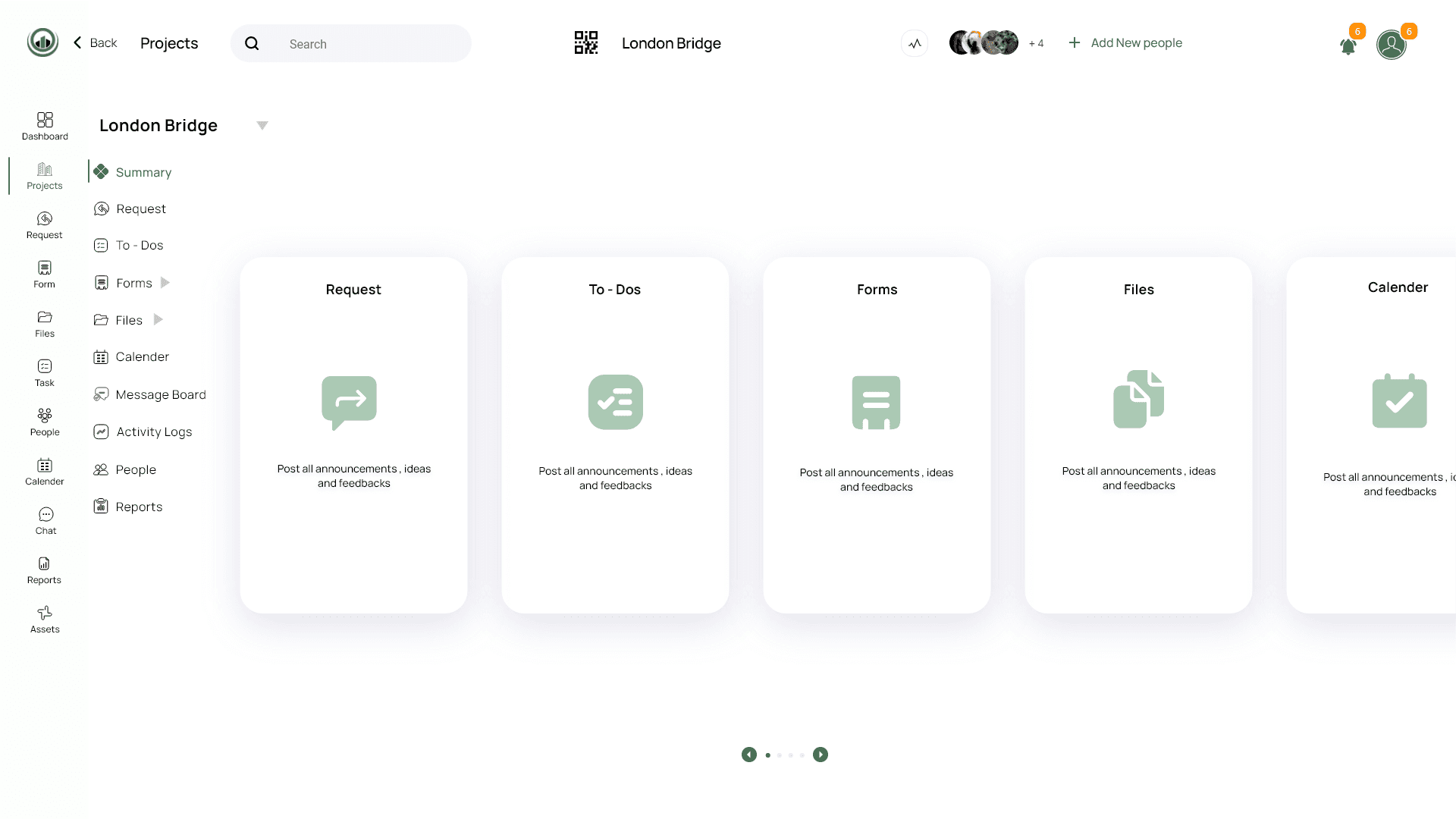
Form Module: Key Features & Summary
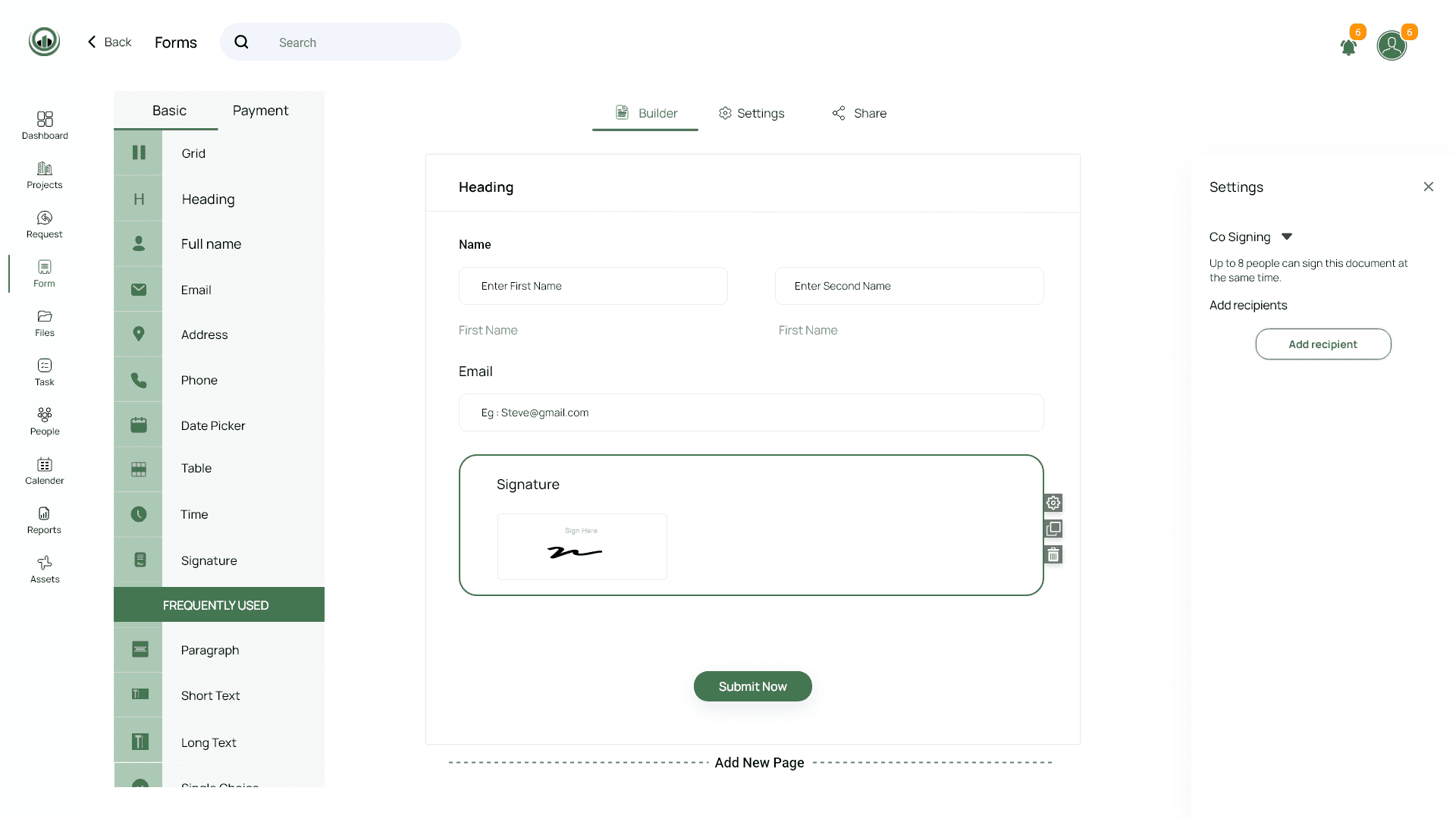
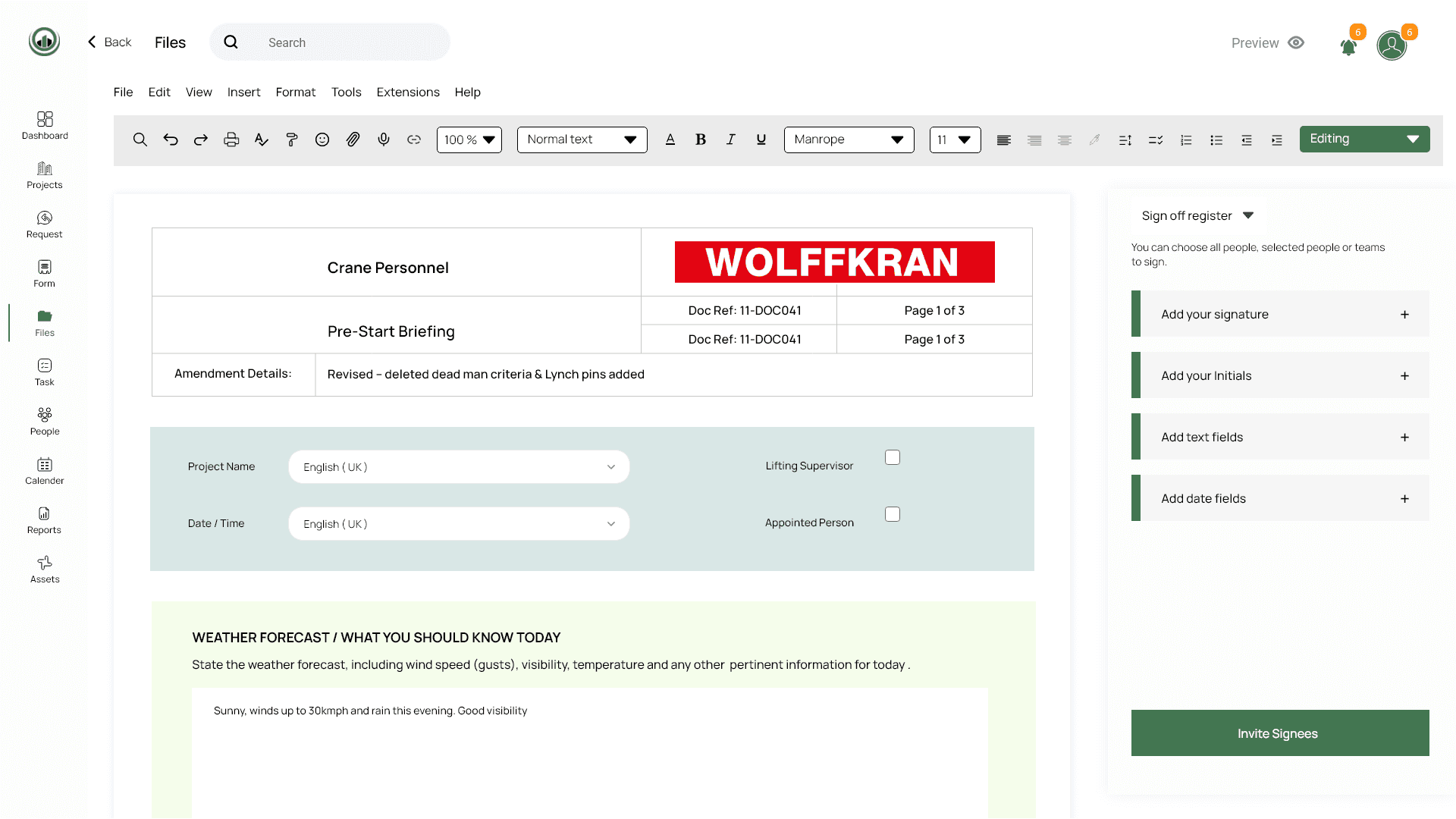
The Forms Module revolutionizes Application’s documentation process by digitizing inspections, compliance checks, and approvals — eliminating paper-based delays and errors. This module ensures standardization, accountability, and legal compliance across all projects through customizable forms, templates, and seamless signing workflows.
“No more chasing signatures — I get instant approvals even from offsite consultants.”
Key Features:
Custom Form Creation — Build dynamic forms (e.g., safety checklists, punch lists) with fields, drop-downs, and photo attachments.
Pre-Built Templates — Accelerate workflows with industry-standard templates (OSHA reports, QA/QC logs) tailored to project needs.
Bulk Signing — Approve multiple forms at once (e.g., daily logs for a week) to save time for supervisors.
Co-Signing & Delegation — Enable multiple stakeholders (e.g., client, contractor) to sign sequentially or simultaneously.
e-Signature Integration — Legally binding digital signatures (compliant with e-sign laws) for contracts and change orders.
Auto-Routing & Notifications — Forms are sent to the right person based on triggers (e.g., failed inspection → project manager alert).
Version Control & Archives — Track edits, access historical submissions, and prevent loss of critical records.
Why It Matters:
By replacing clipboards with mobile-friendly digital forms, Application reduced form-processing time by 65% and eliminated 100% of lost paperwork on the Tower project. The co-signing feature alone cut approval delays from days to hours, keeping projects on schedule.
Files Module: Key Features & Summary
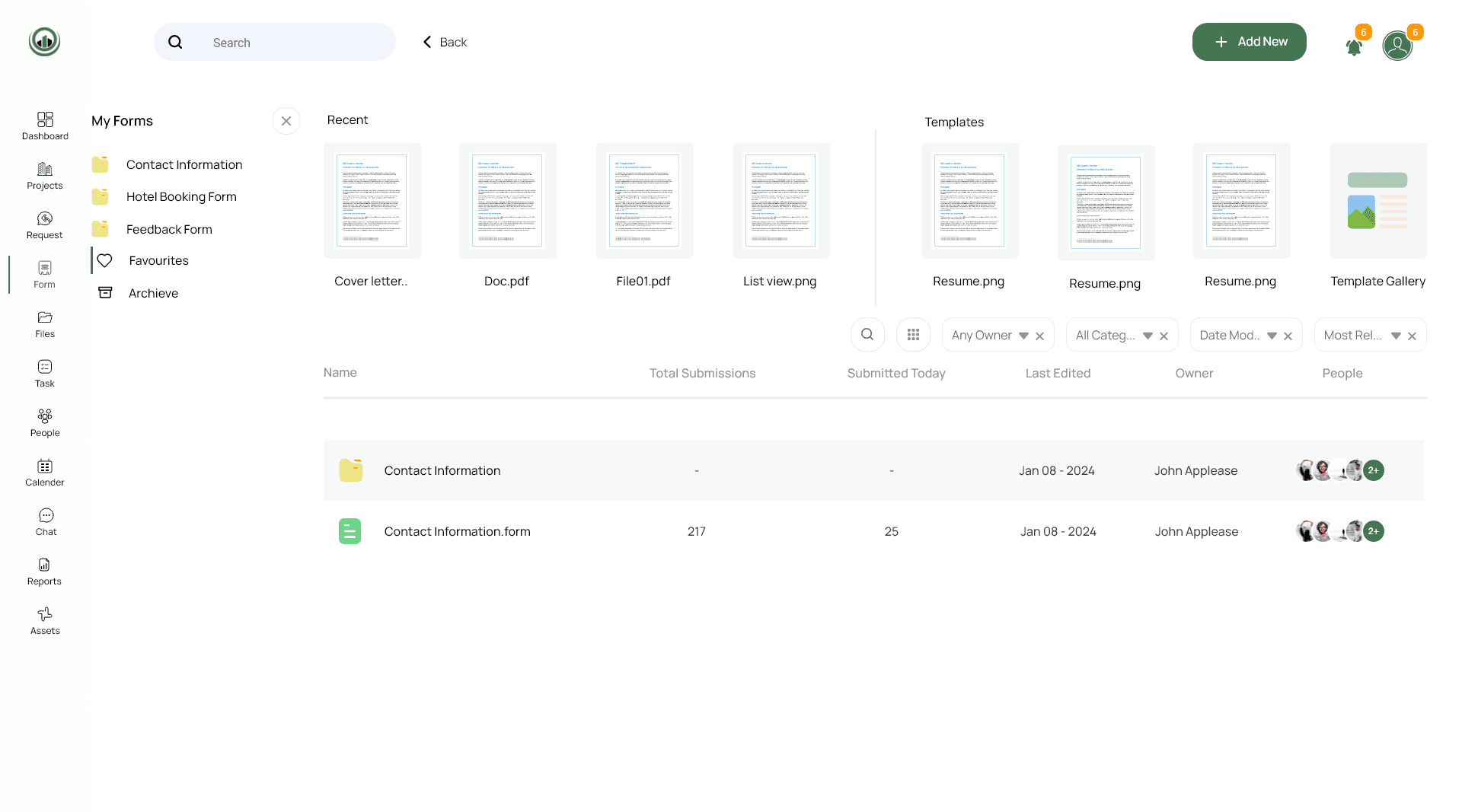
The Files Module acts as Unniffy’s centralized digital library, securely storing and organizing all project-related assets — from blueprints and contracts to progress photos and drone videos. By replacing scattered USB drives, email attachments, and paper folders, this module ensures instant access, version control, and seamless collaboration for all stakeholders.
Key Features:
Unified File Repository — Store and categorize images, videos, PDFs, CAD drawings, contracts, and more in a cloud-based system.
Drag-and-Drop Upload — Easily add files from any device (mobile, desktop, or tablet) with automatic cloud sync.
Version History — Track revisions of critical documents (e.g., design changes in architectural plans) and restore previous versions if needed.
Advanced Search & Filtering — Locate files instantly using keywords, tags, or metadata (e.g., “Floor 3 Electrical Plan — Rev 2”).
Access Permissions — Control who can view, edit, or download files (e.g., subcontractors see only relevant drawings).
Annotation & Markup Tools — Add comments, redlines, or highlights directly on PDFs and images for clearer feedback.
Integration with Design Tools — Sync with AutoCAD, Revit, and BIM software for seamless file updates.
Offline Access — Download critical files for use in low-connectivity job sites.
Why It Matters:
Unniffy eliminated weeks of wasted time searching for misplaced documents after adopting this module. During the Greenfield Towers project, the team reduced rework by 30% because contractors always worked from the latest approved drawings. Real-time photo logs of construction progress also helped resolve disputes and verify milestones.
Task Module: Key Features & Summary
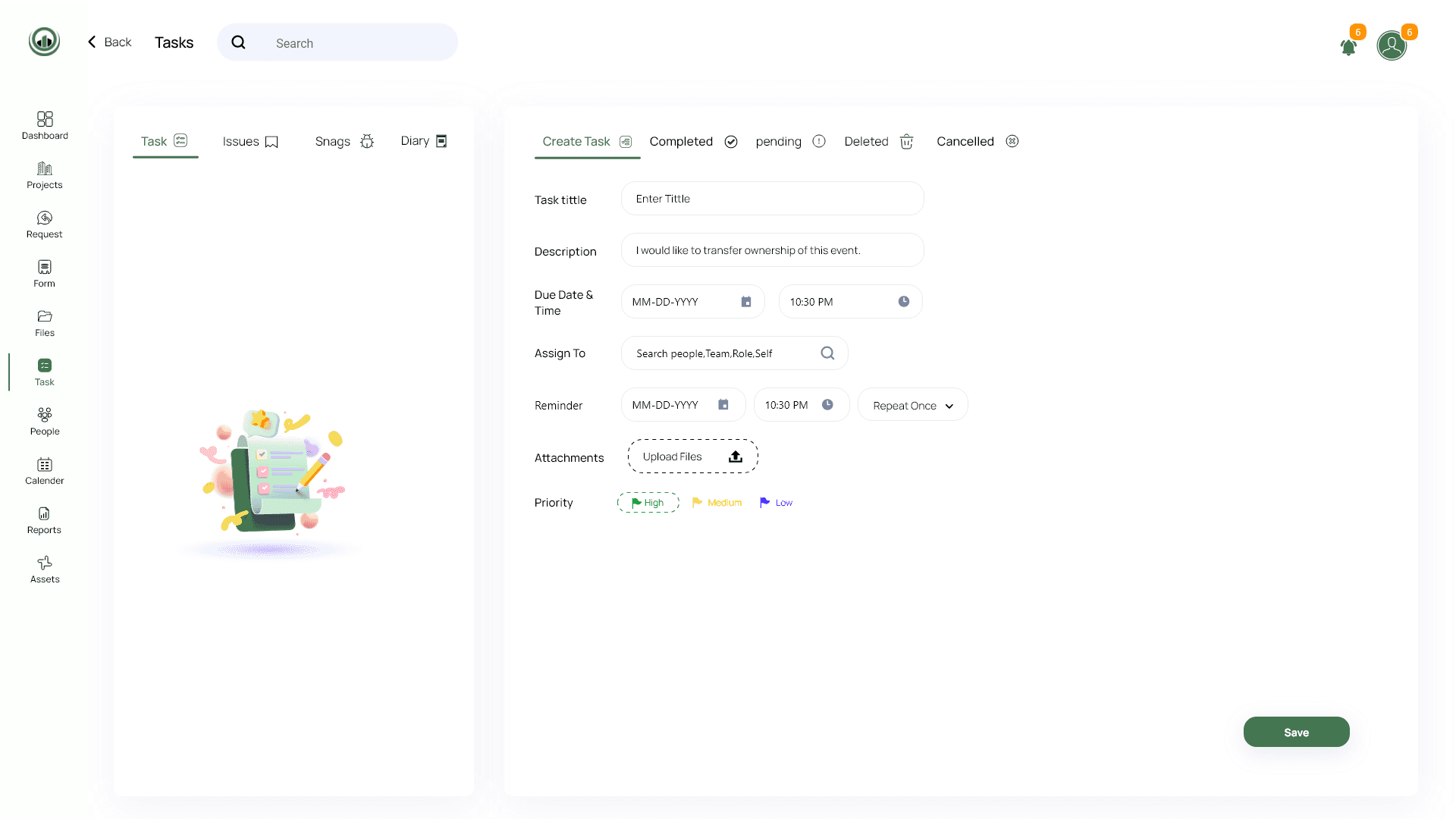
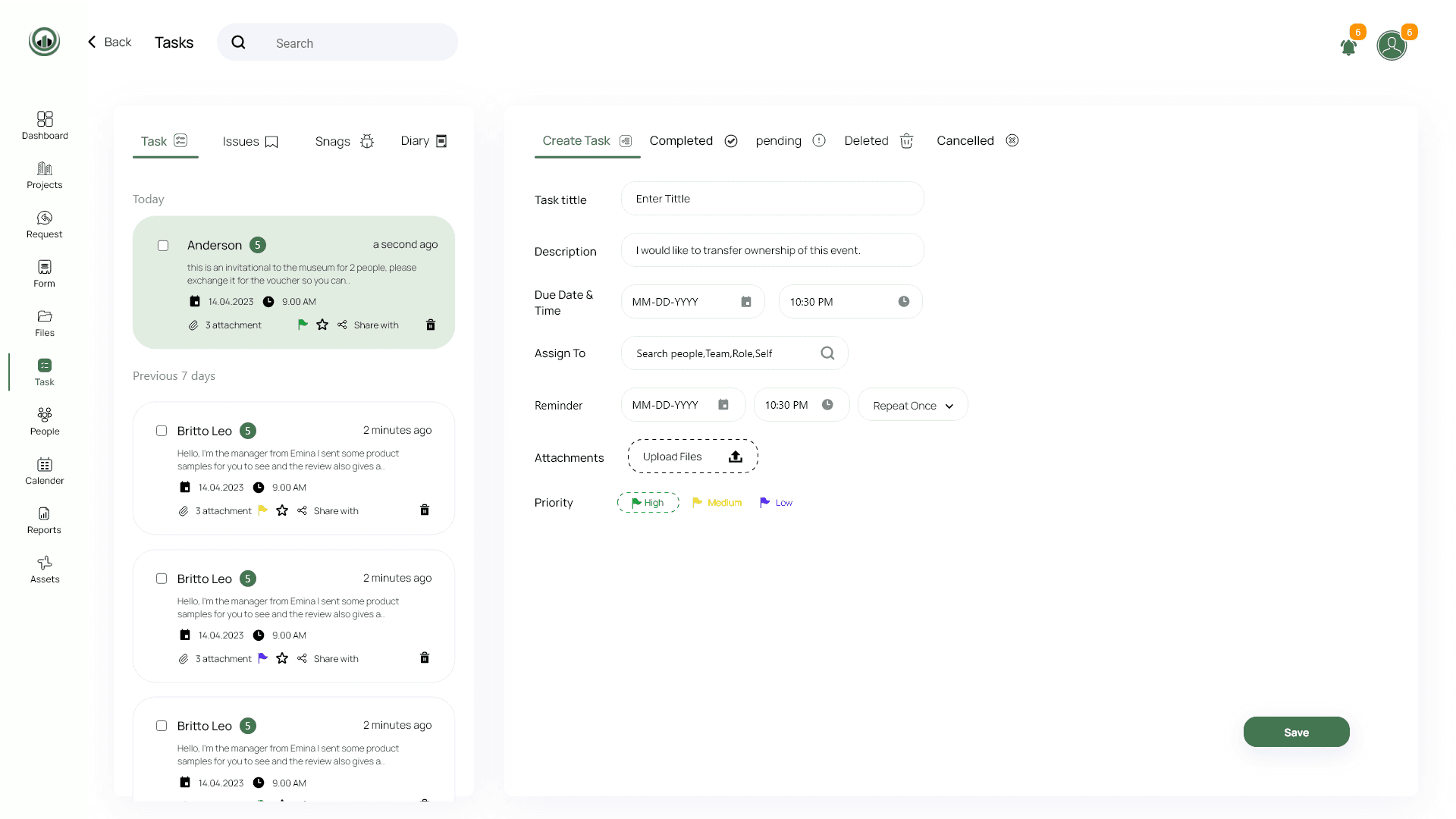
The Task Module serves as Unniffy’s operational command center, transforming chaotic to-do lists into structured, trackable workflows. By digitizing schedules and daily assignments, this module ensures no task falls through the cracks while optimizing team productivity across all projects.
“The task module is our virtual foreman — it tells us what to do, who’s responsible, and when it’s due — without the yelling.”
Key Features:
Master Schedules — Visual timelines (Gantt charts or calendars) displaying project phases, dependencies, and critical deadlines.
Daily Task Management — Break down schedules into daily, prioritized to-dos with clear assignees and deadlines.
Automated Reminders — Alerts for upcoming or overdue tasks via email, mobile push, or in-app notifications.
Progress Tracking — Real-time updates (% completion, delays) with color-coded statuses (On Track/At Risk/Blocked).
Recurring Tasks — Automate routine assignments (e.g., safety checks, equipment maintenance) to reduce manual entry.
Subtask Breakdown — Split complex tasks (e.g., “Pour Concrete”) into step-by-step actions for clarity.
Mobile Accessibility — Update tasks on-site with photos, notes, or markups for context.
Integration with Calendars — Sync with Outlook or Google Calendar to keep teams aligned.
Why It Matters:
Application reduced missed deadlines by 40% after implementing this module. For example, at the Tower site, daily concrete pour tasks were automatically assigned with weather-dependent alerts, preventing costly rework. Supervisors could also rebalance workloads in real time by tracking task completion rates.

Asset Module: Key Features & Summary
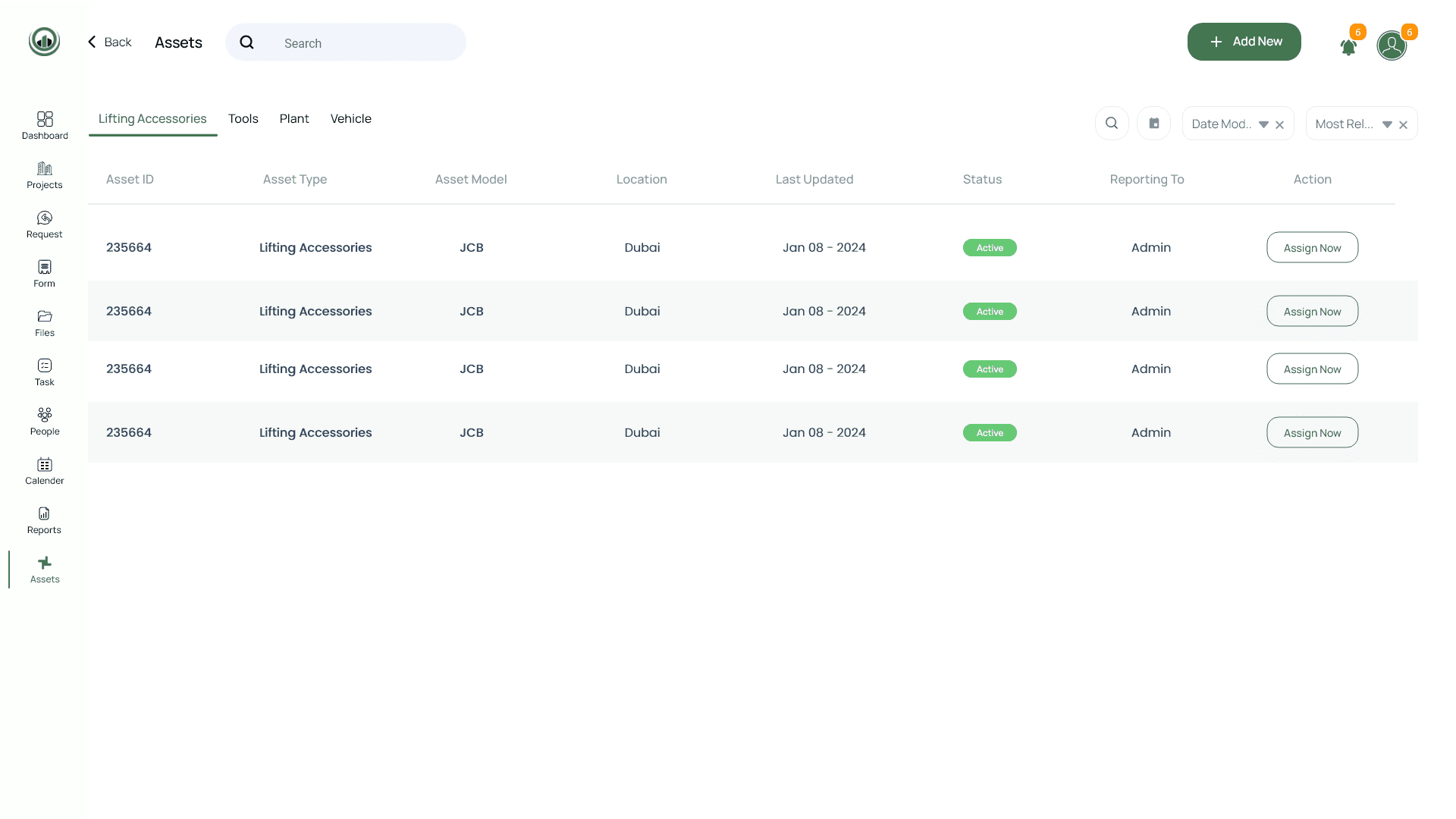
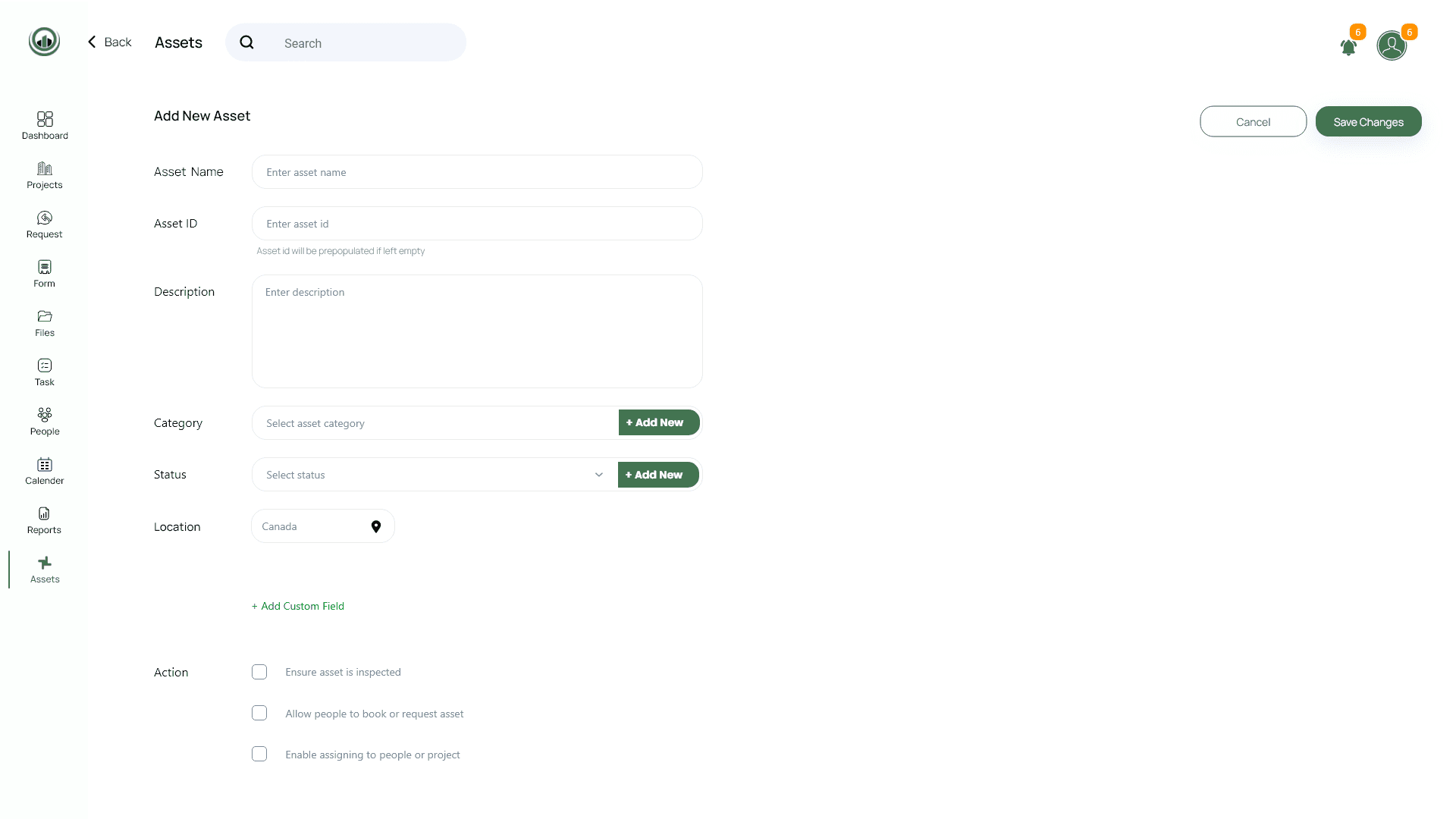
The Assets Module is Unniffy’s centralized equipment and resource hub, providing real-time visibility and control over all physical assets — from heavy machinery to hand tools. By digitizing asset tracking, this module minimizes downtime, prevents loss, and optimizes utilization across projects.
“We used to lose tools weekly — now everything’s accounted for, and we’ve cut replacement costs by half.” — Warehouse Manager.
Key Features:
Comprehensive Asset Registry — Catalog all equipment, includin
Lifting Accessories (slings, shackles, hoists)
Tools (power tools, welding machines)
Plants (excavators, cranes, generators)
Vehicles (trucks, forklifts, site vans)
QR/Barcode Tagging — Scan-to-identify assets for instant check-in/check-out and maintenance history.
Maintenance Scheduling — Automated alerts for inspections, servicing, and certifications to ensure compliance and safety.
Location Tracking — GPS-enabled updates to monitor asset movement between job sites.
Usage Analytics — Reports on utilization rates, idle time, and rental vs. ownership cost comparisons.
Damage/Incident Logs — Record defects, repairs, or accidents with photo evidence for accountability.
Depreciation & Lifecycle Management — Track asset lifespan and plan replacements proactively.
Why It Matters:
Application reduced equipment downtime by 35% and eliminated $200K+ in annual rental waste by identifying underused assets. During the Greenfield Towers project, automated crane maintenance alerts prevented a critical failure, avoiding a potential 2-week delay.